
What this guide covers
A direct-IP printer deployment with full detection
This example was derived from a deployment used in production, with organisation names, locations and internal addressing removed. It installs a printer for the device rather than an individual user, so the Win32 app should run as SYSTEM.
The tested package used the TOSHIBA Universal Printer 2 driver. The driver INF supplied these identifiers:
| INF | eSf6u.inf |
| Catalogue | esf6u.cat |
| Tested version | 7.222.5412.313 |
| Architecture | NTamd64 |
| Exact Windows driver name | TOSHIBA Universal Printer 2 |
| Driver description | PCL6 colour universal driver |
Use your own verified driver package
The example scripts are provided without vendor binaries. Download the current driver from the manufacturer, review its licence and signature, test it on representative devices, and confirm the exact INF and Windows driver name. Do not assume the tested version remains current.
Prepare the source
Keep the package input separate from its output
Create a clean source folder containing the scripts and the extracted 64-bit driver files. Keep the Microsoft Win32 Content Prep Tool and its output outside that source folder; the tool packages every file and subfolder under the source path.
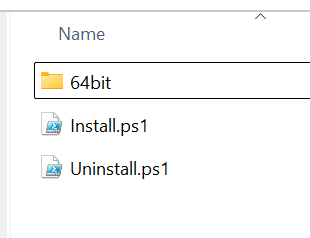
64bit directory contains the vendor driver files, including the INF and catalogue.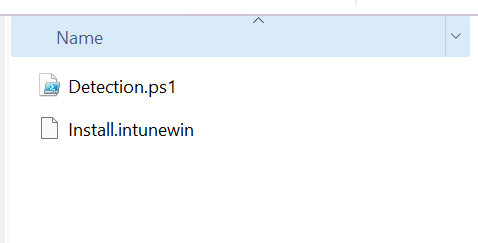
Printer-Source\
├── 64bit\
│   ├── eSf6u.inf
│   ├── esf6u.cat
│   └── [other vendor driver files]
├── Install.ps1
└── Uninstall.ps1

Printer-Output\
├── Detection.ps1
└── Install.intunewin
Redacted examples
Set the four values consistently
The downloadable examples use the reserved documentation address 192.0.2.25. Before packaging, replace the printer name, IP address and port name in all three scripts, and replace the driver name and INF filename where required.
$PrinterName = "Example Office Colour Printer"
$PrinterIP   = "192.0.2.25"
$PortName    = "IP_192.0.2.25"
$DriverName  = "TOSHIBA Universal Printer 2"
$InfName     = "eSf6u.inf"
Install
Finds the INF in the package, stages it with PnPUtil, registers the driver, corrects a mismatched queue or port, and records a transcript.
Download Install.ps1Detect
Requires the printer, port and driver to exist, then verifies that the queue uses the intended driver and that the port has the intended address.
Download Detection.ps1Uninstall
Removes the named queue and removes its port only when no other queue uses it. It deliberately leaves the driver package available.
Download Uninstall.ps1Why the driver remains after uninstall
A universal driver may be shared by several printer queues. Automatically deleting it from the driver store can disrupt other deployments. Treat driver retirement as a separate, tested change with its own detection and rollback plan.
Create the package
Convert the source folder to .intunewin
Download Microsoft's Win32 Content Prep Tool and run it outside the source directory. The setup file identifies the entry point; the complete source directory is packaged.
IntuneWinAppUtil.exe `
    -c "C:\Packages\Printer-Source" `
    -s "Install.ps1" `
    -o "C:\Packages\Printer-Output" `
    -q
Inspect the output folder and confirm that Install.intunewin was created. Do not put a previous .intunewin file inside the source folder.
Configure Microsoft Intune
Create the Windows app and use device context
In the Intune admin centre, create a Windows app (Win32) and upload the package. A representative configuration is:
| Setting | Example value |
|---|---|
| Install command | %SystemRoot%\SysNative\WindowsPowerShell\v1.0\powershell.exe -NoProfile -ExecutionPolicy Bypass -File .\Install.ps1 |
| Uninstall command | %SystemRoot%\SysNative\WindowsPowerShell\v1.0\powershell.exe -NoProfile -ExecutionPolicy Bypass -File .\Uninstall.ps1 |
| Install behaviour | System |
| Device restart behaviour | Determine behaviour based on return codes |
| Operating-system architecture | 64-bit |
| Detection rule | Use a custom detection script and upload Detection.ps1 |
| Run detection as 32-bit | No |
The example uses ExecutionPolicy Bypass only for that PowerShell process. Organisations that require signed scripts should sign the files with their trusted code-signing certificate and configure the commands and detection settings accordingly.
Validate before broad assignment
Prove installation, printing and removal
Test the package locally
Use a representative 64-bit Windows test device. Confirm that the driver is signed, the printer is reachable and the scripts run non-interactively.
Assign to a pilot device group
Start with a small device-based group. Review Intune Management Extension results and the local transcript under C:\ProgramData\PrinterDeployment\Logs.
Test the real workflow
Print a Windows test page and an application document. Confirm colour, duplex, finishing options and defaults expected by the users.
Test repeat and removal
Run installation again to prove it is repeatable, deliberately test a harmless configuration mismatch, and confirm that uninstall does not disturb another queue using the same driver or port.
Common failure points
Use the evidence produced by each layer
| Symptom | Check |
|---|---|
| INF not found | Confirm the filename, source-folder contents and extracted driver subfolders before packaging. |
| Driver cannot be registered | Confirm the exact model name declared by the INF, the driver signature and the PnPUtil exit code. Review %windir%\inf\setupapi.dev.log. |
| Printer installs but detection fails | Compare the queue name, port name, driver name and PrinterHostAddress with the values in the detection script. |
| Works manually but not through Intune | Test under SYSTEM context, verify 64-bit PowerShell and inspect both the script transcript and Intune Management Extension logs. |
| Queue exists but cannot print | Check routing, firewall policy, printer availability, protocol choice and whether the address is reserved for the printer. |
Security and governance
Treat the driver as privileged software
The package runs as SYSTEM and stages kernel-adjacent vendor software. Obtain drivers from an authoritative source, retain their version and signature evidence, restrict who can edit or assign the Intune app, and pilot replacement versions before broad deployment. Avoid publishing internal IP addresses, site names or identifiable screenshots.
This implementation supports RACF-CC Domain 2 through managed endpoint configuration, Domain 4 through controlled driver maintenance, Domain 6 through deployment and local logging, and Domain 8 through ownership, approval and retained evidence.
Authoritative references
Microsoft deployment and command guidance
- Microsoft Learn: Prepare Win32 app content for upload
- Microsoft Learn: Win32 app management in Microsoft Intune
- Microsoft Learn: PnPUtil command syntax
- Microsoft Learn: PnPUtil return values
- Microsoft Learn: Add-Printer
- Microsoft Learn: Add-PrinterDriver
- Microsoft Learn: Add-PrinterPort
Microsoft Intune screens and vendor driver versions change over time. Confirm the current documentation and driver package before deployment.
Help improve this guide
Did the printer deployment work for you?
Tell us what worked or where you got stuck. Feedback is reviewed privately and may be used to correct or improve this page.
Voluntary support
Found this useful? Support Trends4You
Trends4You's practical guides, RACF-CC resources and downloadable tools are provided free of charge. If they've helped you or your organisation, you can support the time and hosting that keeps them freely available.
Support is optional, handled securely by Stripe and does not provide additional access.